
Time Tracking
Overview
The Time Entries page is yet another view available to you for tracking time against Sales, Matters or Projects.
This page has been enhanced with the addition of several different data views including
- Time entries for Today, Yesterday, Last 7 Days, Last 30 days, This Month, Last Month or a Custom Range
- Time entries for Sales, Matters or Projects
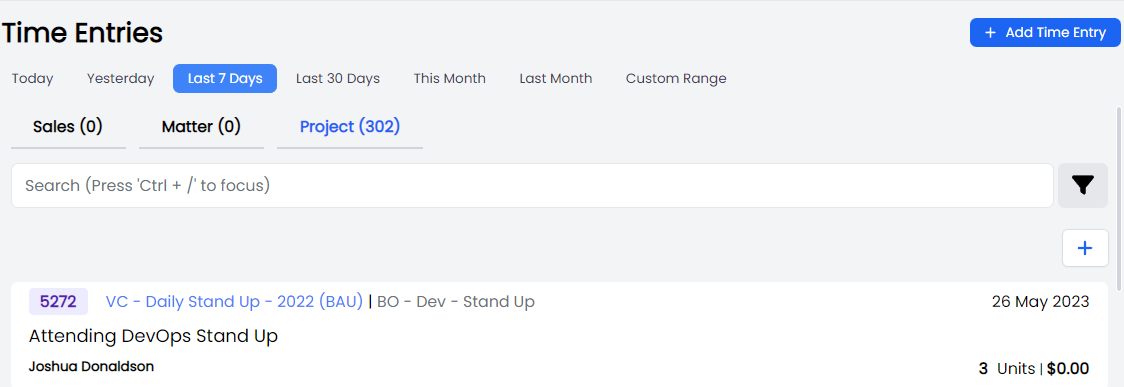
These views allow you to see how your time has been spent over different periods of time.
Permissions
The Time entries sidebar link uses Matter.View (navLinks.ts). Individual create/edit actions may require additional time-entry permissions depending on your role.
For the Auto time entries draft queue, see Auto time entries.
Add a New Time Entry
Any time you submit a Timer, you will be asked to complete a Time Entry. However, if you want to create a Time Entry without a Timer, you can do so in a number of ways.
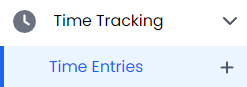
You can add a Time Entry from the menu by clicking the + next to Time Entries.
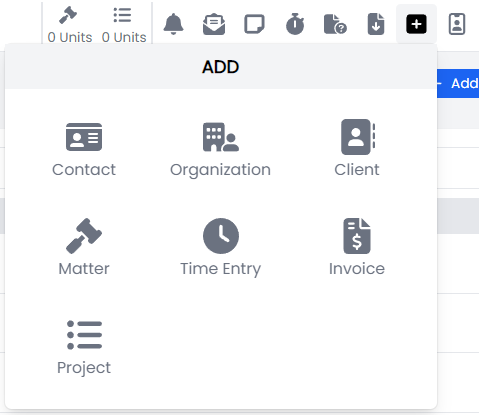
Form any page in the system, you can access a quick link from the icon menu. Click the + icon and select Time Entry from the list.
On the Time Entries page, you can add a Quick Time Entry directly into the list, by inputting the details into the Quick Time Entry modal. This will already be tailored to Sales, Matter or Project based on which view you are in.
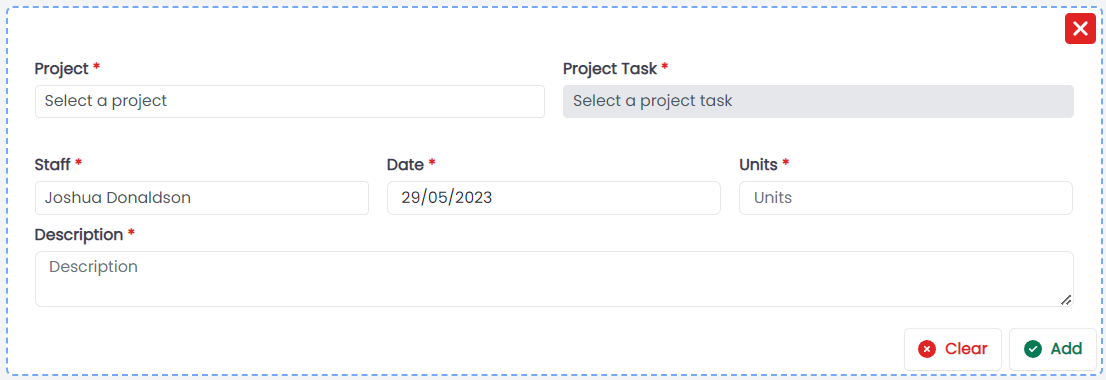
If this modal isn't visible form your Time Entries view, hit the + icon between the filter and the list of Time Entries, and it should appear.
Alternatively, you can also click the + Time Entry button at the top right of the Time Entries page, to add your Time Entry.

In all instances (besides Quick Time Entry), you will be required to select if the time entry is for Sales, Matter or Project. The default will be set as Matter.
Sales
When you select the Sales filter, you will be prompted to add the following information:
- Matter
- Date
- Units
- Description
Click on the Confirm button to submit your Time Entry.
Matter
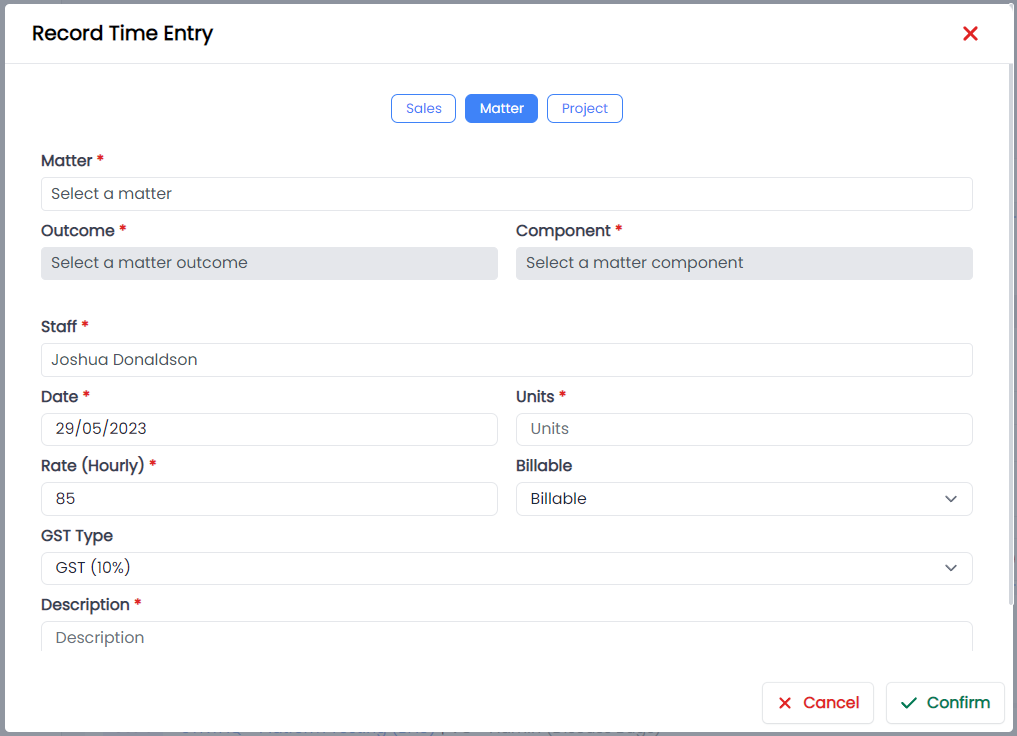
When you select the Matter filter, you will be prompted to add the following information:
- Matter
- Outcome
- Component
- Date
- Units
- Rate
- Billable
- GST Type
- Description
Click on the Confirm button to submit your Time Entry.
When you submit time entries against a matter you should be aware that the selections you make will impact the format of the invoice template and what data will be presented in the invoice.
Billable Type
- Billable: Time entries marked as billable will be displayed on the Invoice
- Non Billable: Time entries that will not be included in or displayed on the Invoice.
- Non Chargeable: Time entries will be included in or displayed on the Invoice but will be 0 rated.
GST Type
- GST 10%: 10% is added to the rate when added to an invoice
- GST export (0%): 10% is not added to the rate when added to an invoice. Typically, we will select GST Export (0%) for clients who are based overseas and are not required to pay GST.
- BAS excluded: These time entries relate to Goods or Services that we provide our clients that are not subject to 10% GST.
Project
When you select the Project filter, you will be prompted to add the following information:
- Project
- Project Task
- Date
- Units
- Description
Click on the Confirm button to submit your time entry.