Navigation
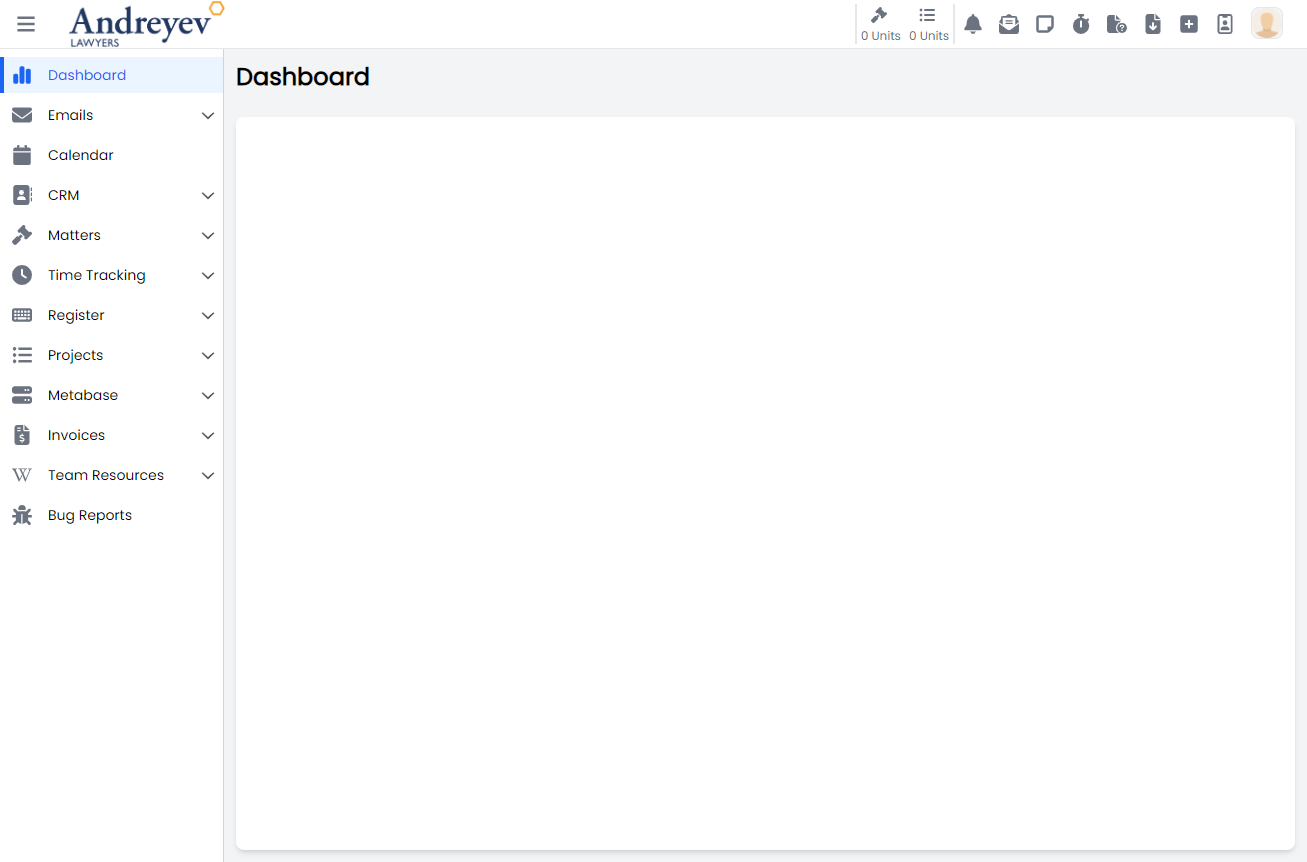
SBOS.AI uses a sidebar-based navigation layout with a top menu bar. This page explains the key navigation elements so you can quickly find what you need.
Main Layout
The application layout consists of three main areas:
- Sidebar -- Primary navigation to all major sections
- Top Bar -- Quick access menus, notifications, timers, and user settings
- Content Area -- The main workspace where you view and interact with data
Sidebar Navigation
The sidebar provides access to all major sections of the platform. Click any item to navigate to that section.

Main Menu
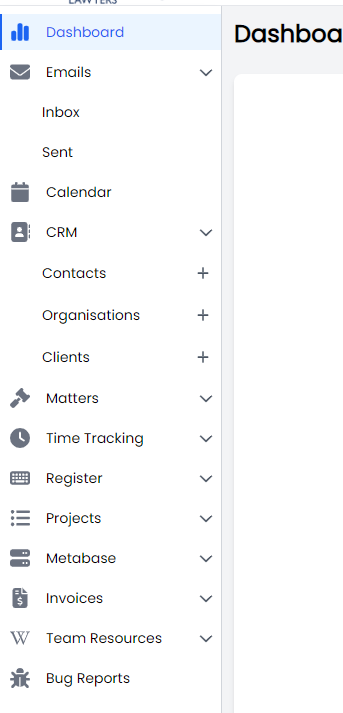
The main menu contains links to the primary feature areas:
Staff portal sidebar (from code)
The staff (/user) sidebar is built from navLinks.ts (allUserLinks) in the SBOS.AI web client — repository path ALP/App/src/components/ui/layout/framework/navLinks.ts. Group titles and link titles below match that file (May 2026).
| Group | Links (title → permission on menu row) |
|---|---|
| General | Dashboard; Emails → Email.View; Calendar → Calendar.View |
| CRM | Clients → Client.View; Contacts → Contact.View; Organisations → Organisation.View; Groups → Group.View |
| Matters | Matters → Matter.View; Matters Report → Matter.View; Offerings → Matter.View (route also uses Offering.View — see Offerings) |
| Workflows | Routines → Project.View; Projects → Project.View; Project tasks → Project.View; To Do → Project.View |
| Time & Invoices | Auto time entries → Matter.View; Time entries → Matter.View; Invoices → Invoice.View; Waiting approvals → Invoice.Approve; Ready to send → Invoice.Send |
| Registers | Mail register → MailRegister.View; Risk register → Risk.View; Incident log → IncidentLog.View; PPSR register → PPSRRegister.View; Asset register → Asset.Edit |
| Compliance | AML dashboard → ReleasePermission.Beta + CddProfile.View |
| Contracts | Contracts → Contract.View |
| Reports | Metabase reports → Metabase.View |
| Syntaq | Syntaq forms → Matter.View; Syntaq records → Matter.View |
| Support | Support tickets → SupportTicket.View; Wiki → Core.View; Help → external https://docs.sbos.ai/ |
Admin and System menus use allAdminLinks and allSystemLinks in the same file. Switch context by navigating to /admin or /system.
Top bar
The top bar contains several quick-access menus:
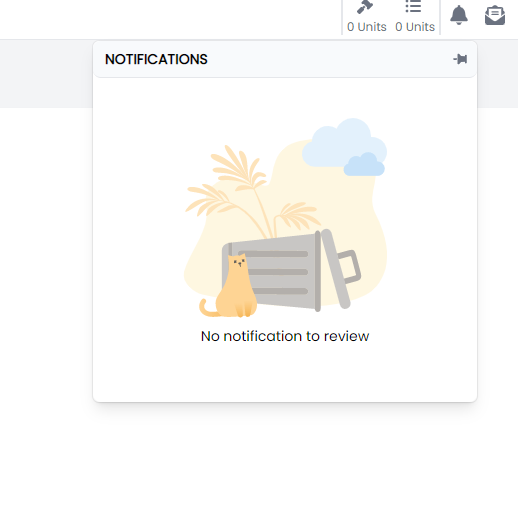
Notifications
View real-time notifications about updates, assignments, and system events.
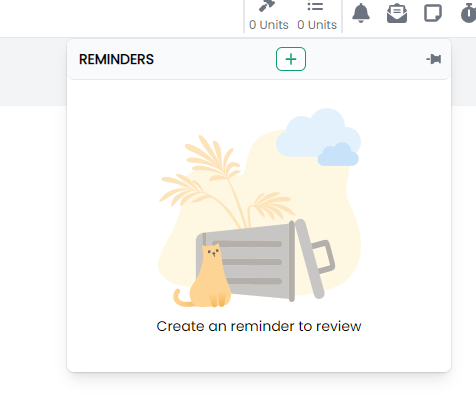
Reminders
Access your active reminders and create new ones.
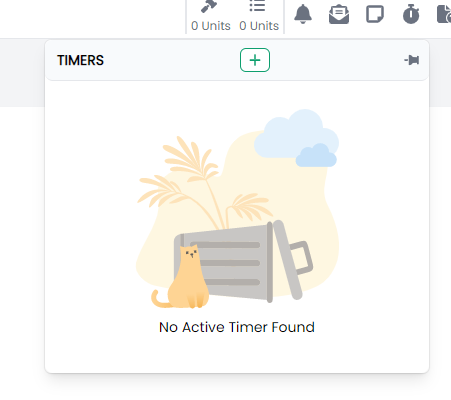
Timer
Start, pause, and manage your active time tracking timer directly from the top bar.
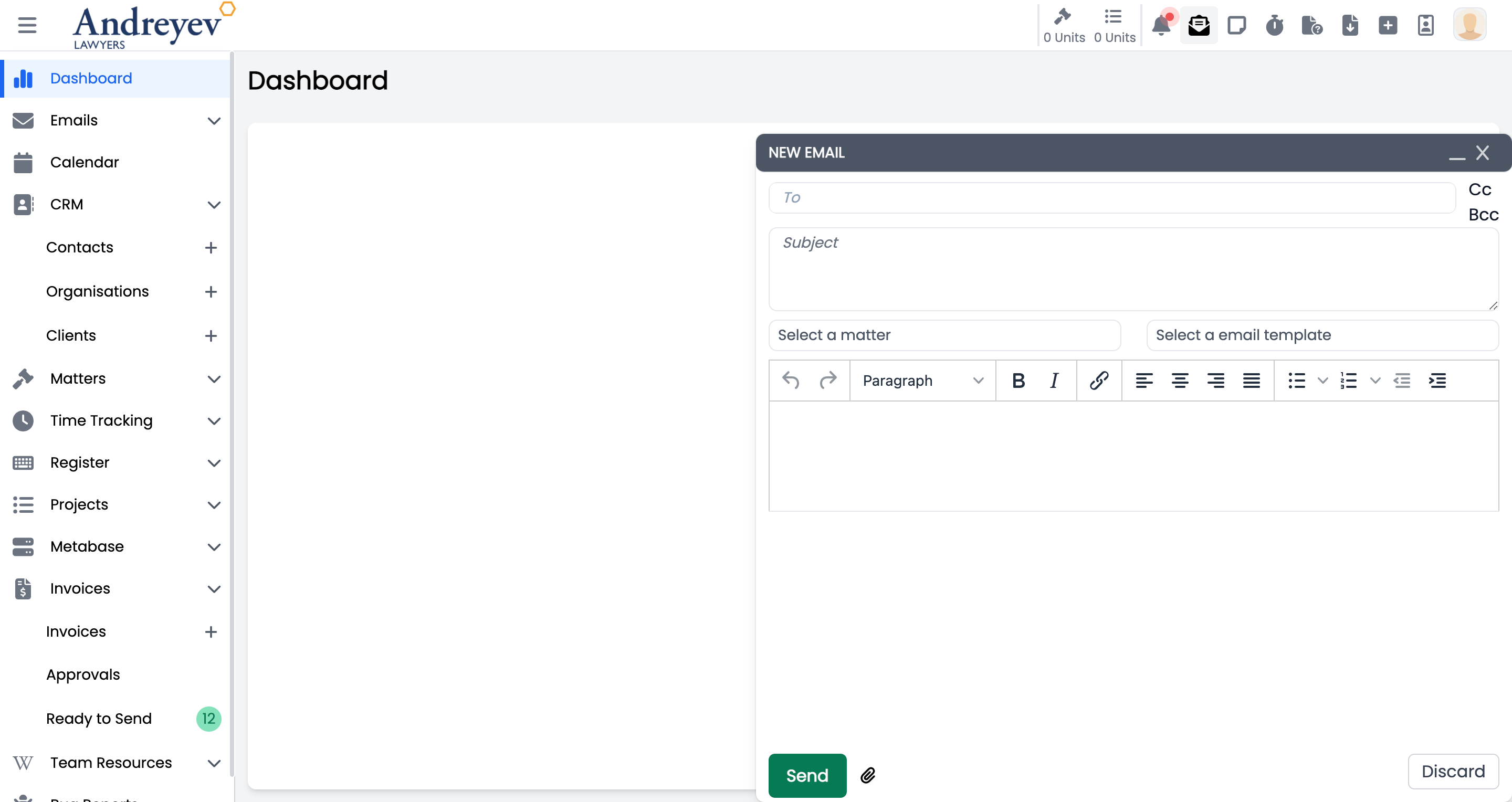
Email
Quick access to your synced email inbox.
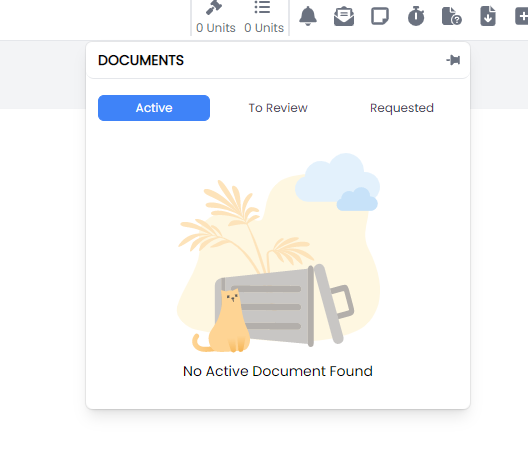
Documents
Quick access to document-related actions.
Downloads
Access files available for download.
Page Layouts
SBOS.AI uses two primary page layouts:
Master-Detail Layout
Used for list-based views (e.g., contacts, matters). The left panel shows a list, and clicking an item opens its details in the right panel.
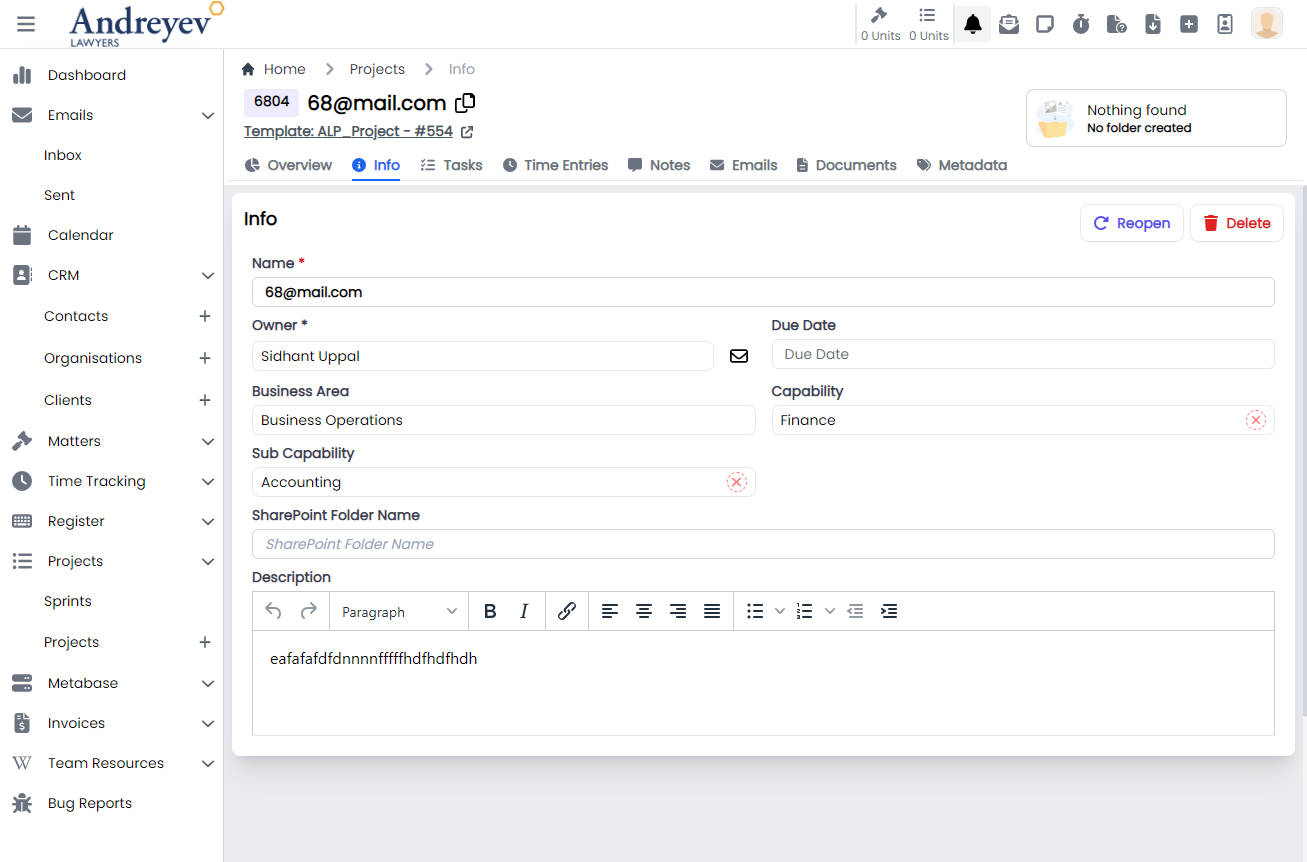
Detail Layout
Used for viewing and editing a single record with all its associated information.
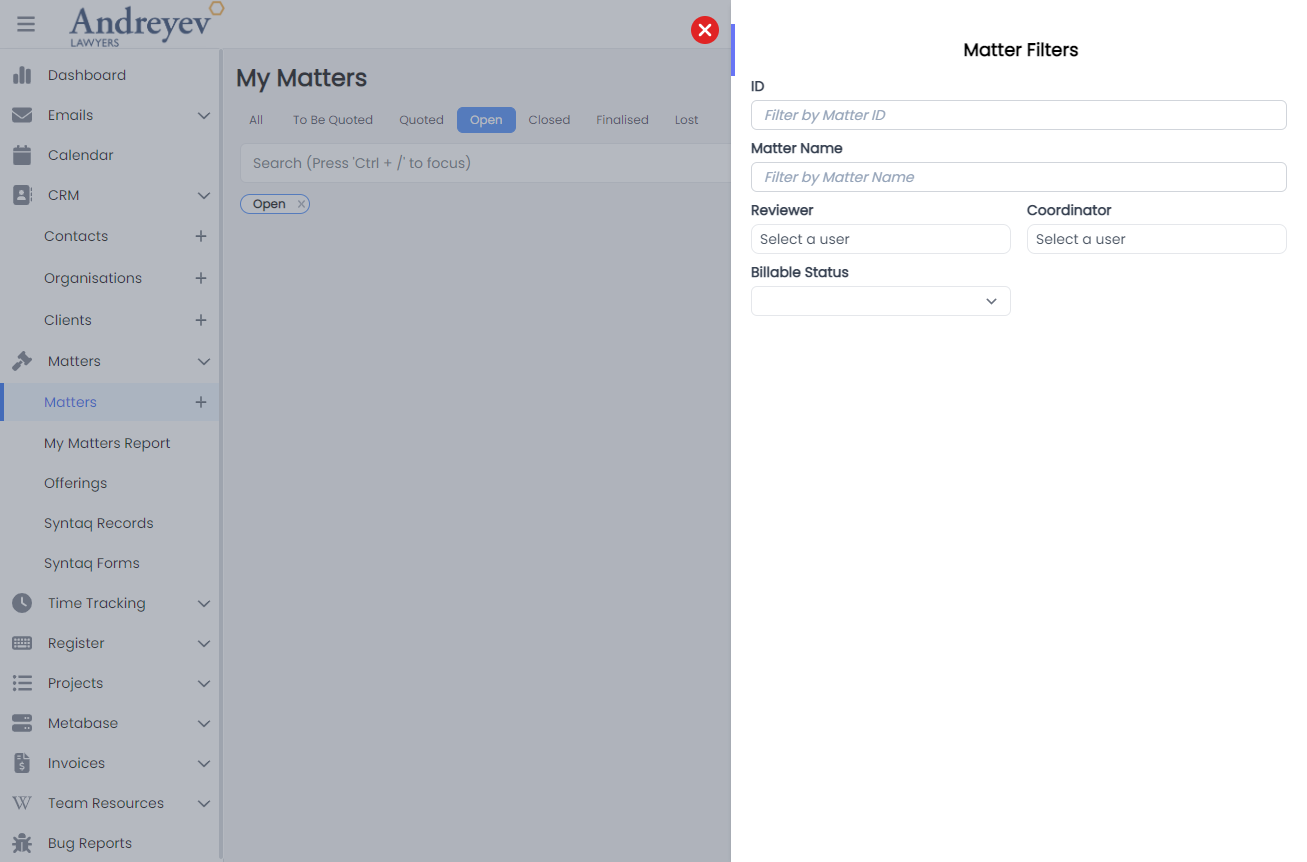
Slide-Over Panels
Some actions open in a slide-over panel on the right side of the screen, allowing you to perform quick tasks without leaving the current page.
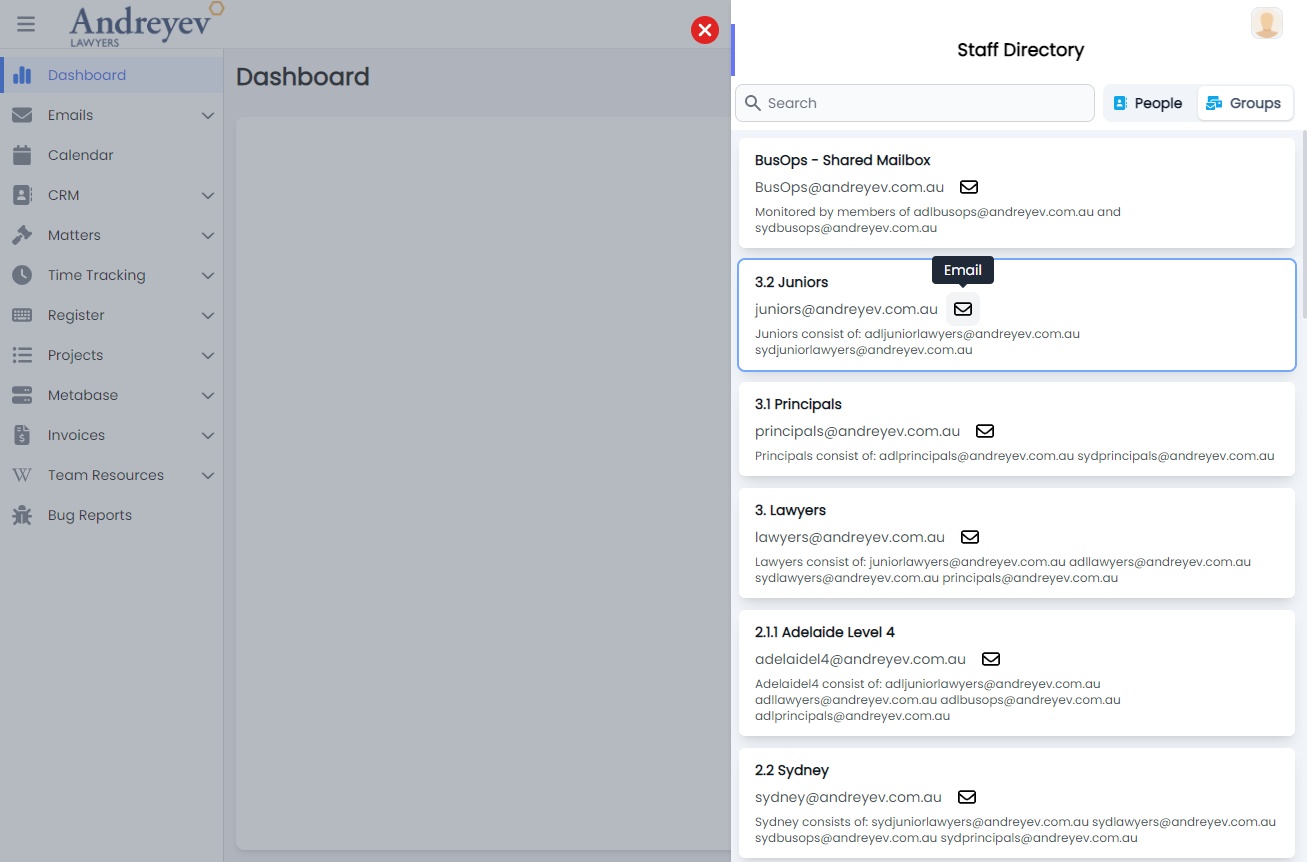
Staff Directory
The staff directory provides quick access to find and contact team members.
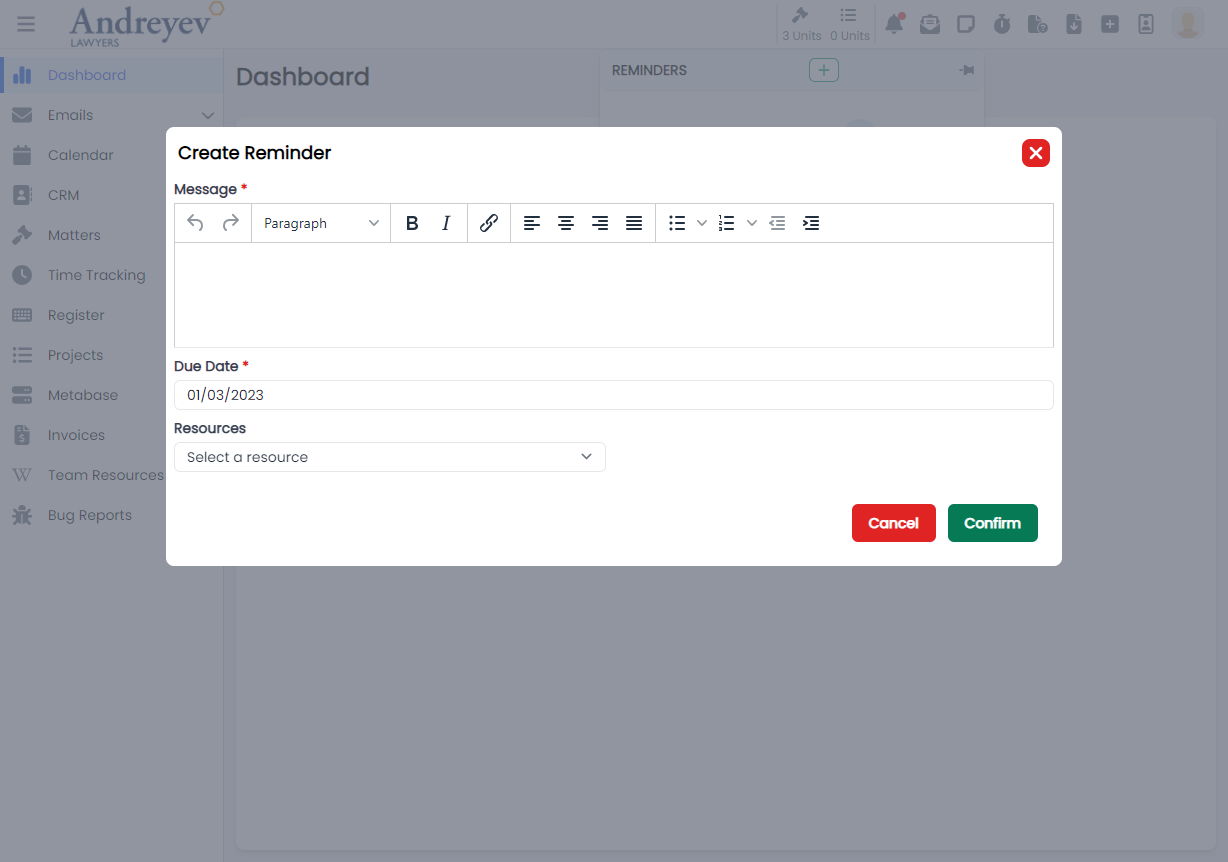
Creating Reminders
You can create reminders from various locations in the application to stay on top of important tasks and deadlines.
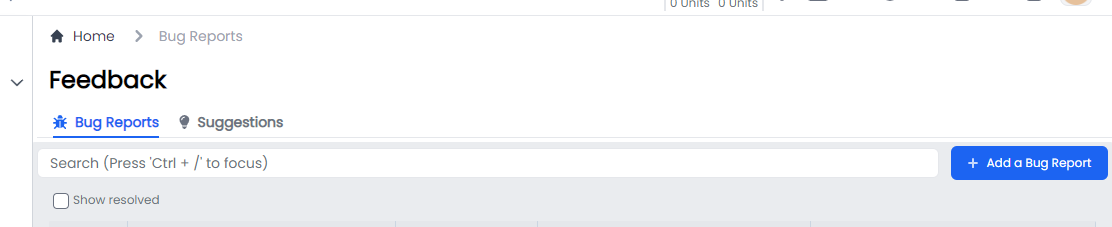
Feedback
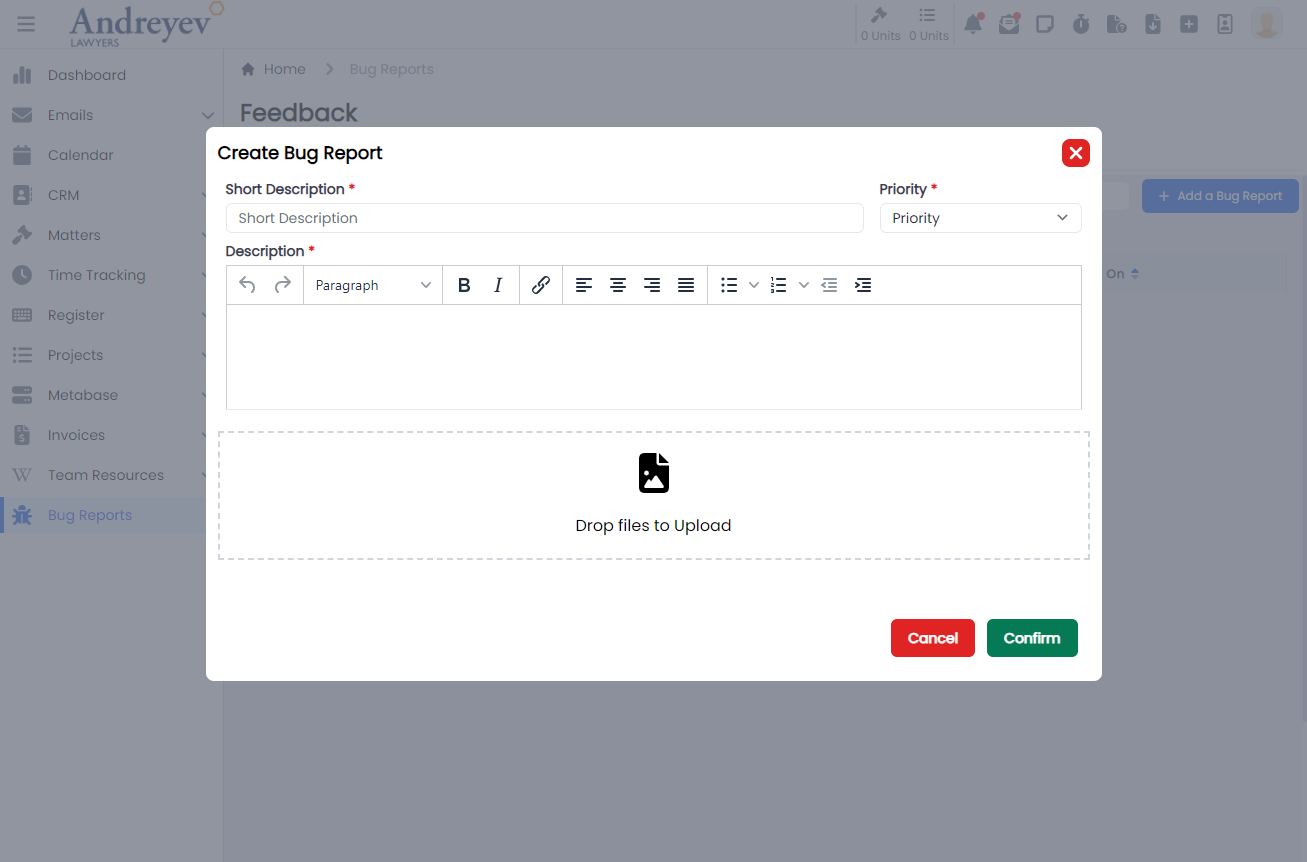
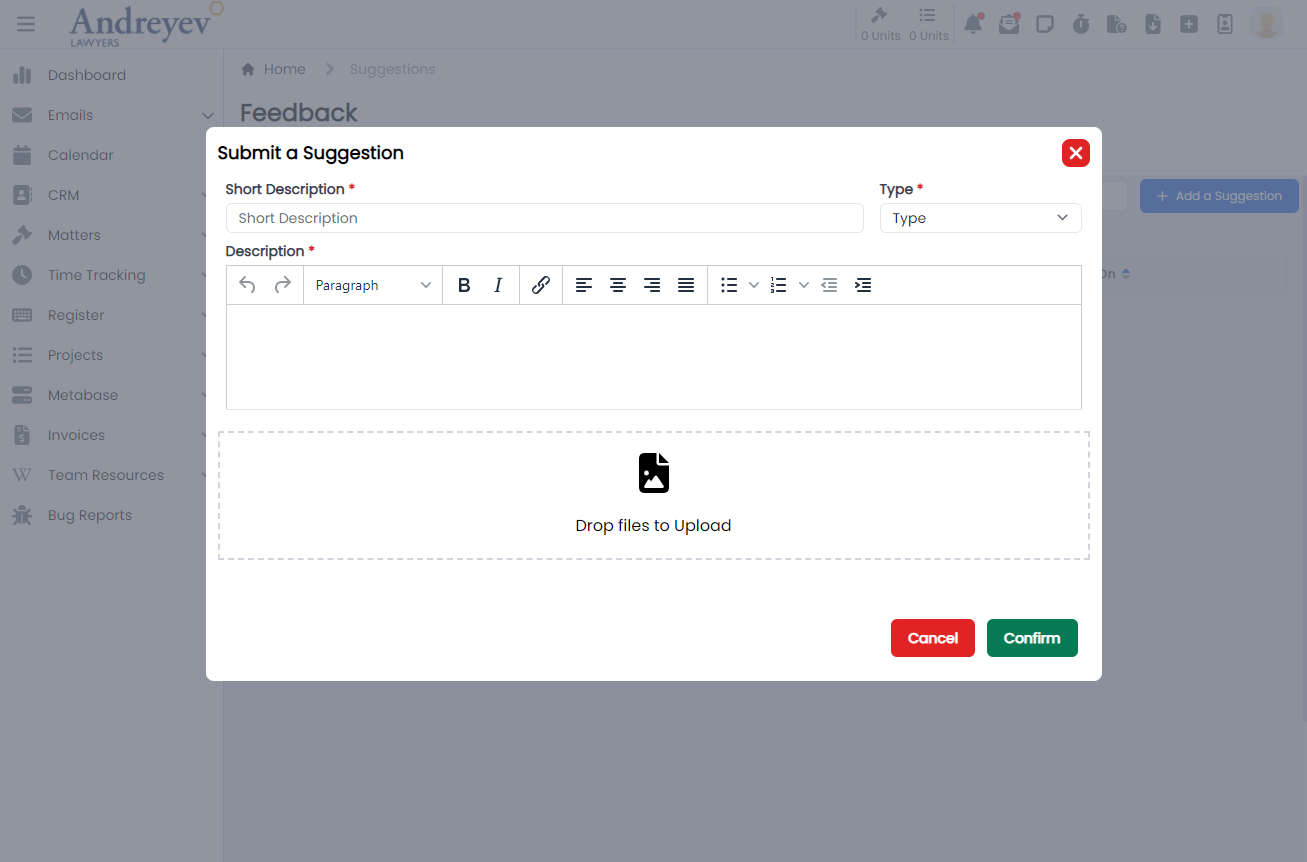
Use the built-in feedback tools to report bugs or suggest improvements.