
Admin - Metabase
Overview
Metabase is the platform we have integrated with to display our metrics. The Metabase pages in the Administration section define which reports get shown to which Users.
Permissions
Users with the required permissions can access the following Metabase pages from the Administration menu under Resources:
- Metabase Reports
- Metabase Report Groups
Metabase Reports
Metabase Reports shows a list of the Reports from Metabase that are able to be made accessible to Users.
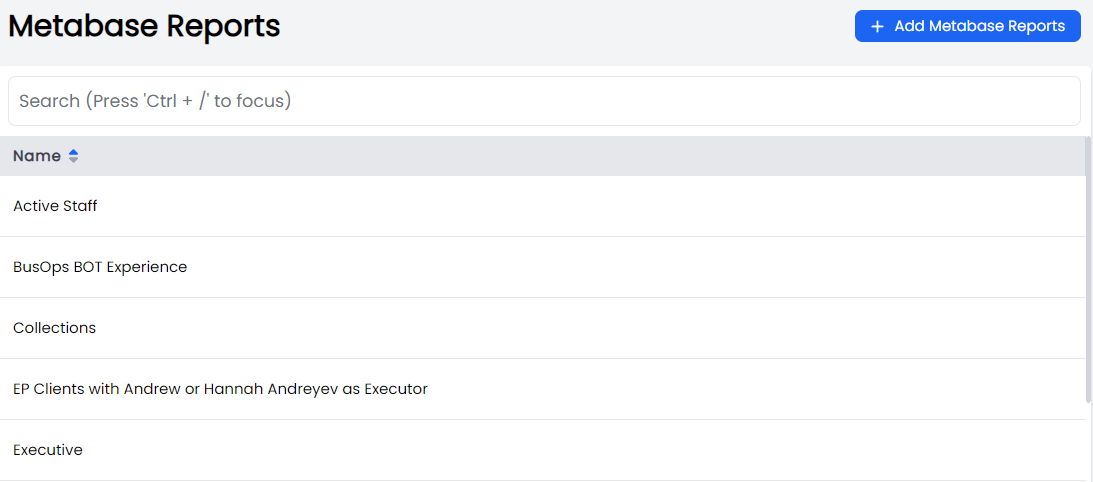
Create a new Metabase Report
Once a Metabase Report has been created in Metabase, admin users can add the report to SBOS.AI by clicking the Add Metabase Reports button in the top-right of the page. This will open the Create Metabase modal, where the following details will need to be added:
- Name: The name of the Report
- Description: Optional description of the report
- Resource ID: The resource ID from Metabase
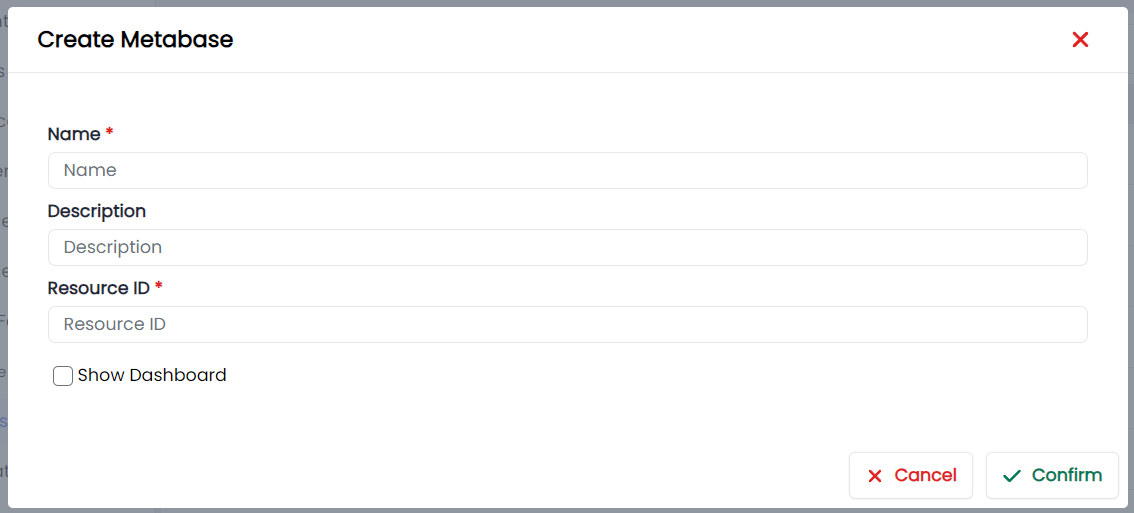
Click Confirm to add the Report.
Note that the Show Dashboard checkbox should only be selected if this new report is to REPLACE the current Dashboard Report for all Users.
To finalise the creation of the report, find it in the list and click on it to edit the remaining details.
Edit Metabase Report
To edit the properties of a Metabase Report, click on the Report on the Metabase Reports page in the Administration menu. This will bring up the Report details and parameters page where you can edit:
- Name
- Description
- Resource ID
- Groups: This is the group of Users that can view the Report. Groups selectable for this property are defined and managed under Metabase Report Groups
- Parameters: Name and type of parameter that the Report needs to be filtered by when viewed by a User
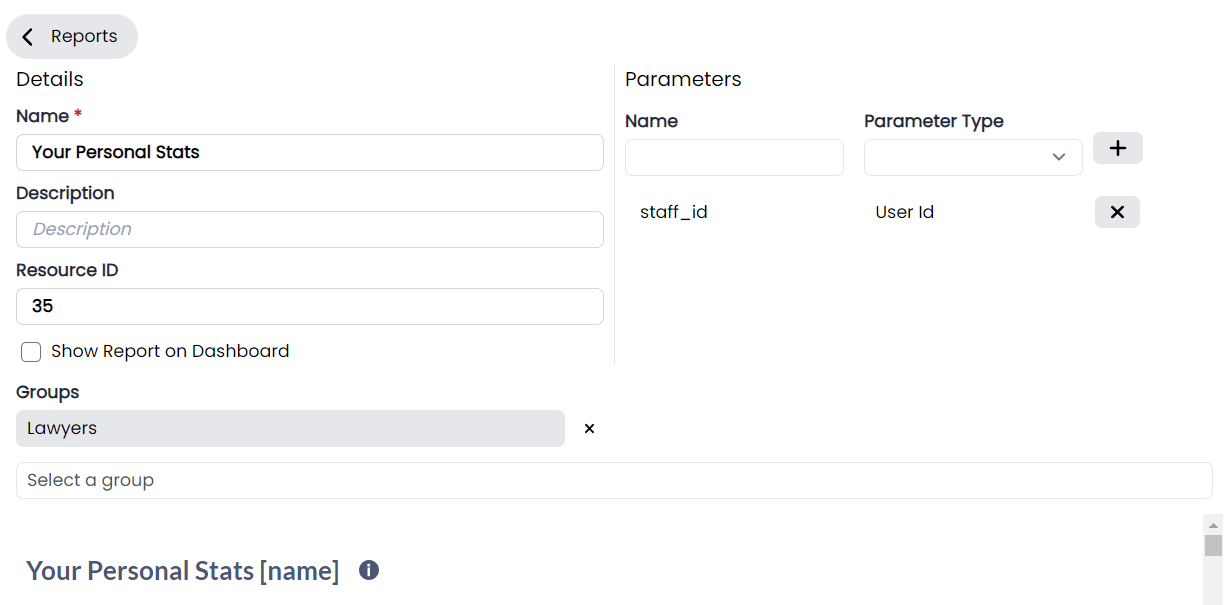
Groups and Parameters can have more than one item added. To remove existing items, click the cross icon beside the existing item.
When editing a property of the Report, save the change you have made by clicking the green tick, or discard your changes by clicking the red cross.
Delete a Metabase Report
Metabase Reports cannot be deleted. Remove all Groups assigned to the Report to make sure the report is not visible to Users.
Metabase Report Groups
Metabase Report Groups define the sets of Users that are able to access the Metabase Reports related to that Group. For example, the BusOps Group contains members of the BusOps team, and therefore Reports that are only relevant to the BusOps team should be assigned to them from the Metabase Report page.
Create a Metabase Report Group
To create a new Metabase Report Group, simply go to the Metabase Report Groups page from the Administration Menu under Resources, and click the Add Metabase Report Group button in the top-right of the page. Then, add the following details to the Create Metabase Report Group modal:
- Name
- Description
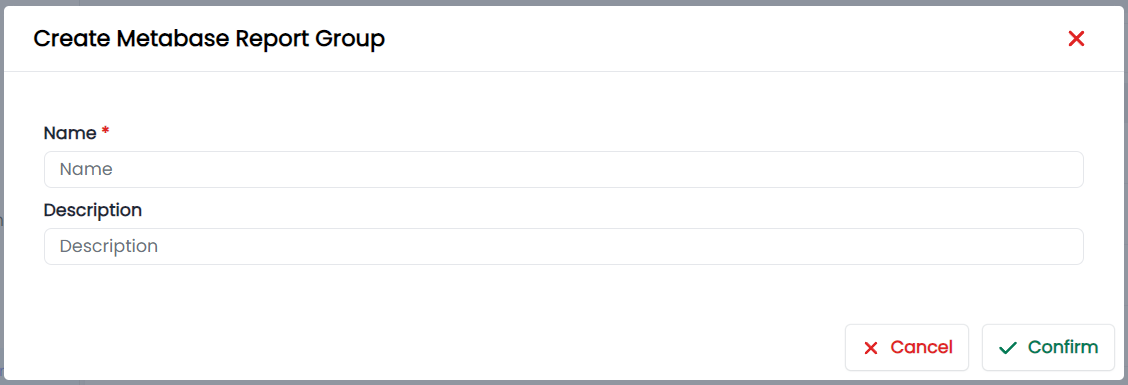
Click Confirm to add the Group.
To finalise the creation of the Group, find it in the list and click on it to edit the remaining details.
Edit a Metabase Report Group
To edit a Metabase Report Group, go to the Metabase Report Groups page and select the Group from the list to open the Group details menu, where the following information can be edited:
- Name
- Description
- Users: The Users who should have access to Reports assigned to this Group
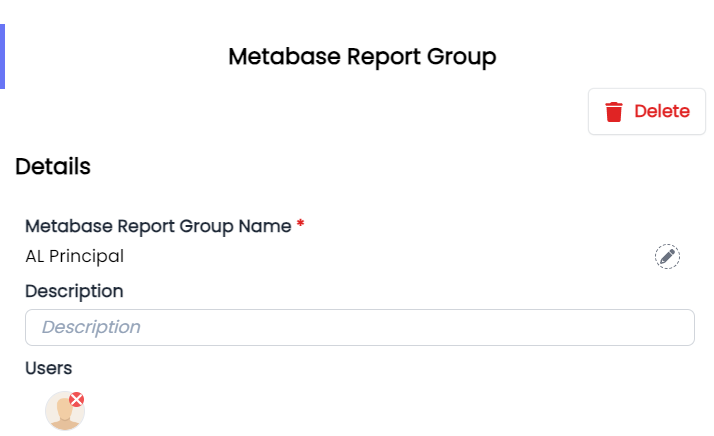
Confirm updates to Name and Description by clicking the green tick, or discard them by clicking the red cross.
Users can be added by clicking below the User heading, and selecting them from the dropdown. Users can be removed by clicking the red cross beside the User's icon.
Delete a Metabase Report Group
From this same menu, the Group an be deleted by clicking the Delete button in the top-right.